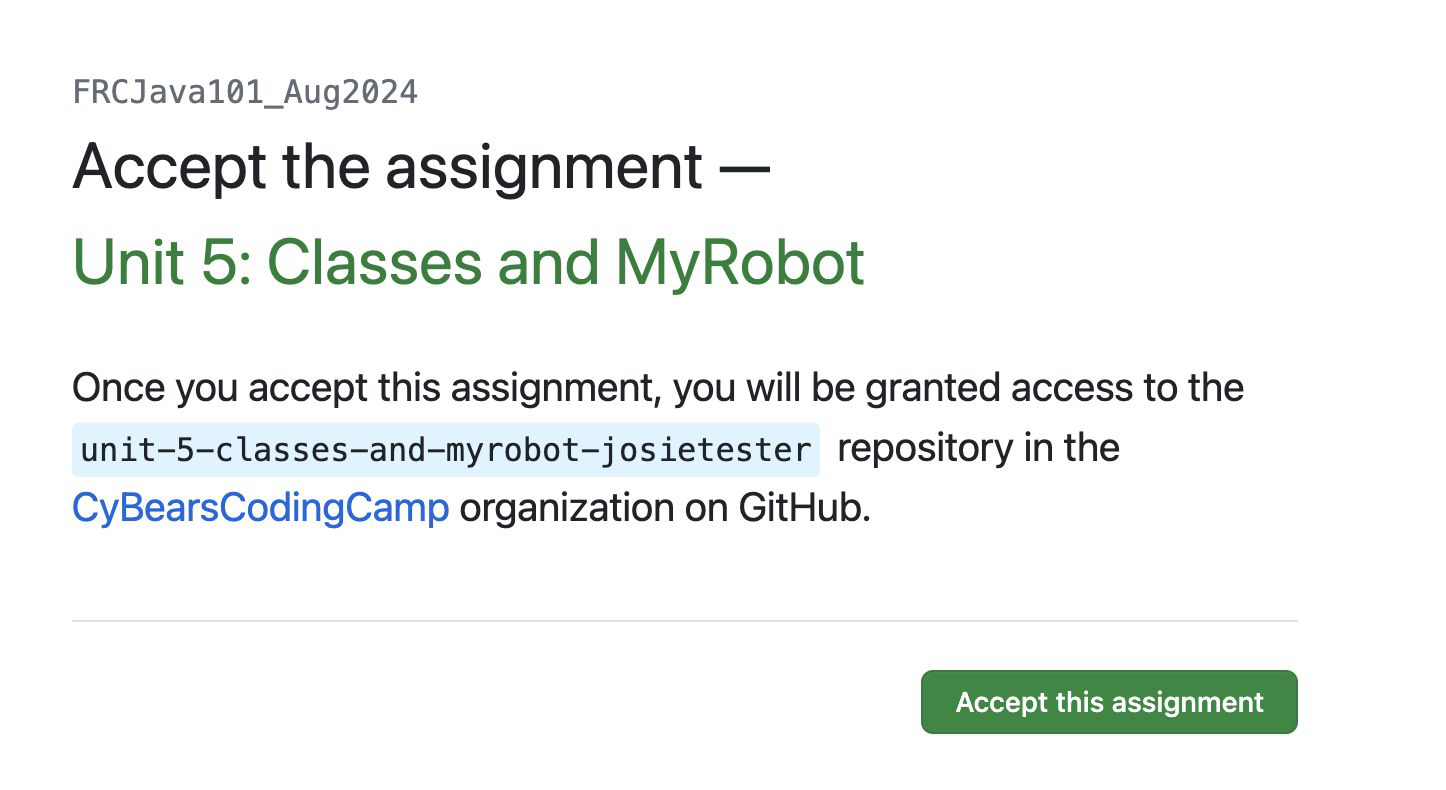
1) Accept the Assignment
Open the GitHub Classroom invite for your unit and click “Accept this assignment”. Wait for GitHub to create your personal repository.
Accept the assignment, clone with GitHub Desktop, and work in the WPILib version of VS Code — with screenshots for every step.
Open the GitHub Classroom invite for your unit and click “Accept this assignment”. Wait for GitHub to create your personal repository.
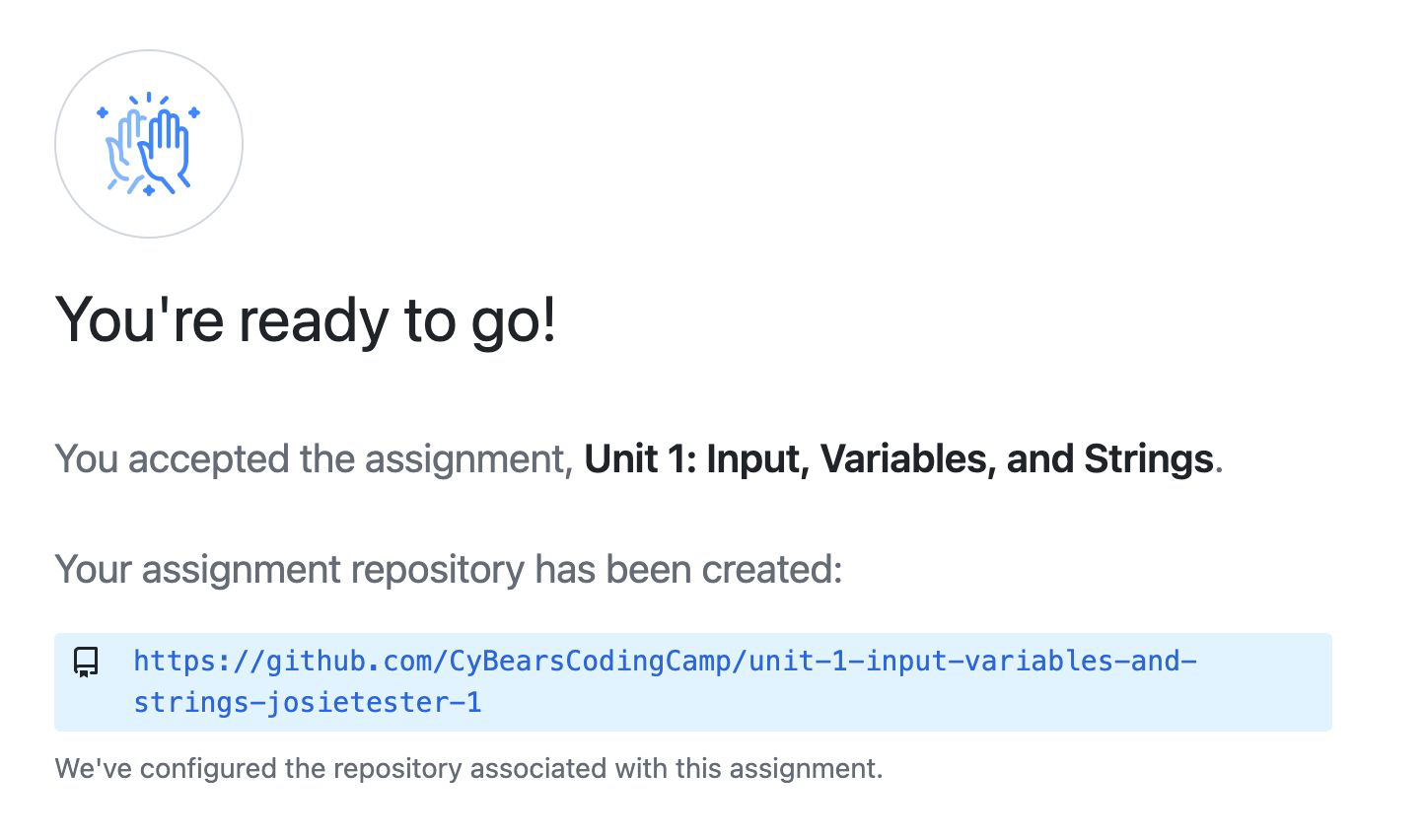
When the repo is ready, click its link. You’ll land on your assignment repository on GitHub’s website.
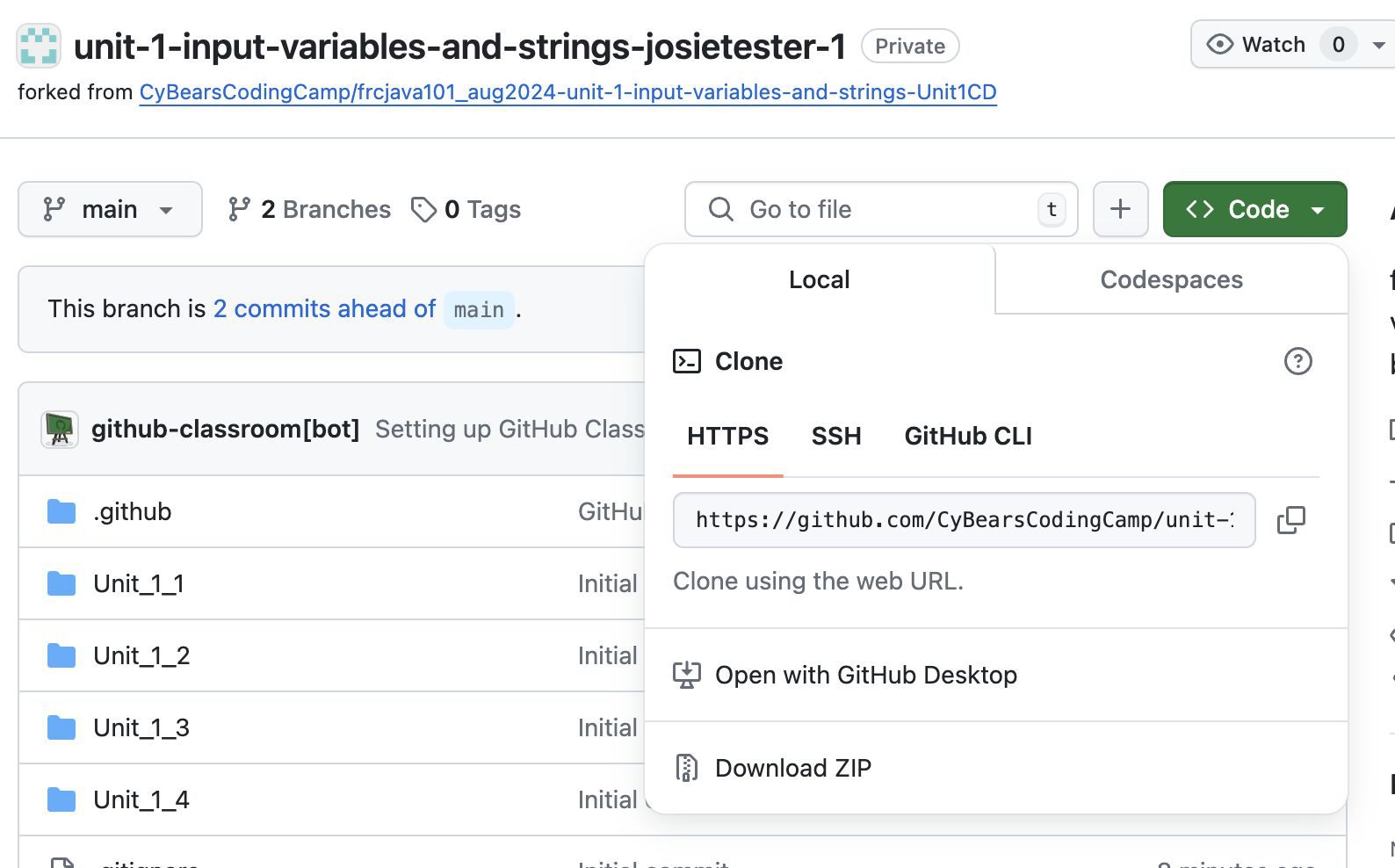
On GitHub, click the green Code button → choose Open with GitHub Desktop (or copy the URL and use File → Clone Repository… in GitHub Desktop).
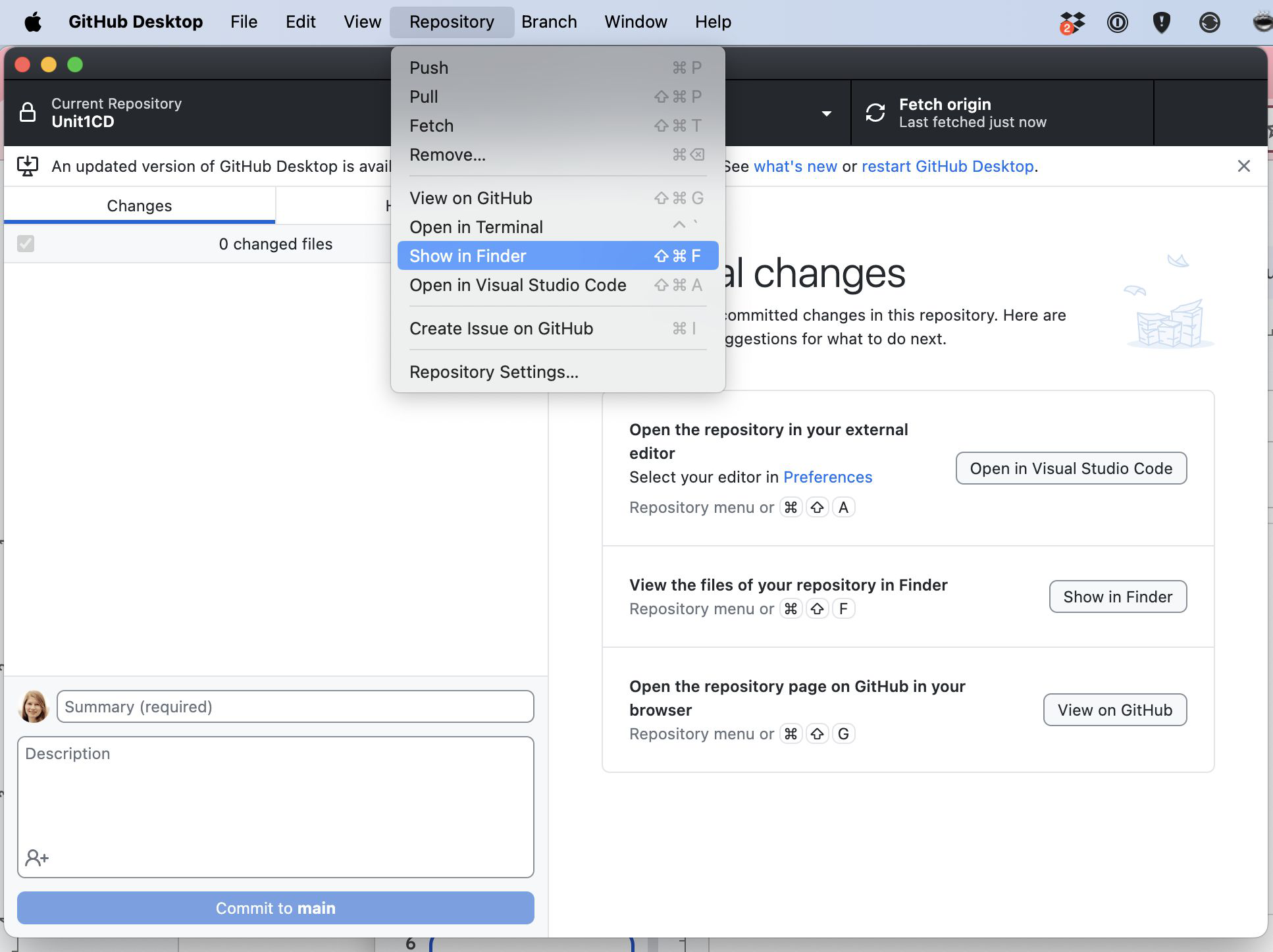
In GitHub Desktop, choose Repository → Open in Visual Studio Code.
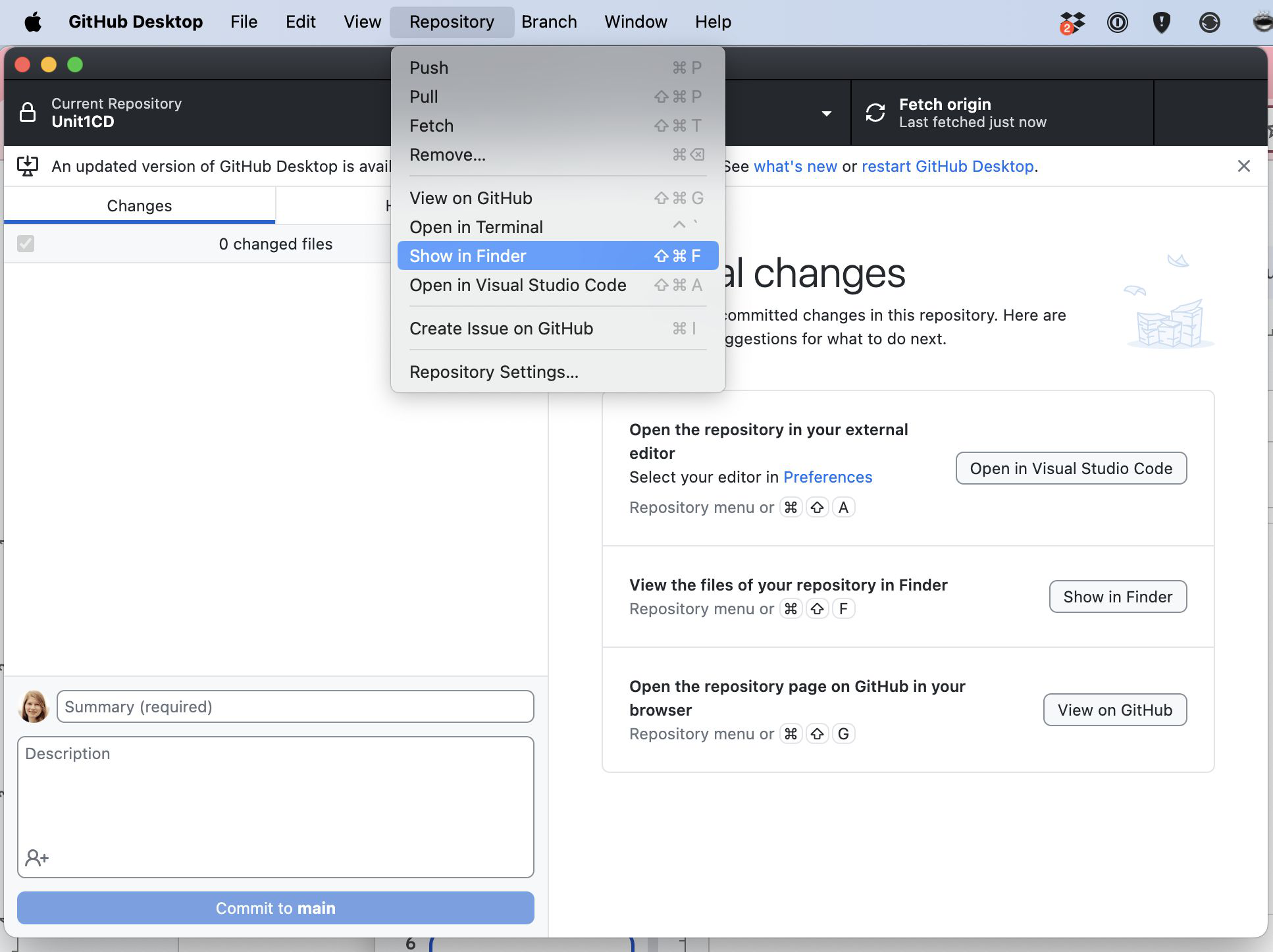
In GitHub Desktop, choose Repository → Show in Finder.
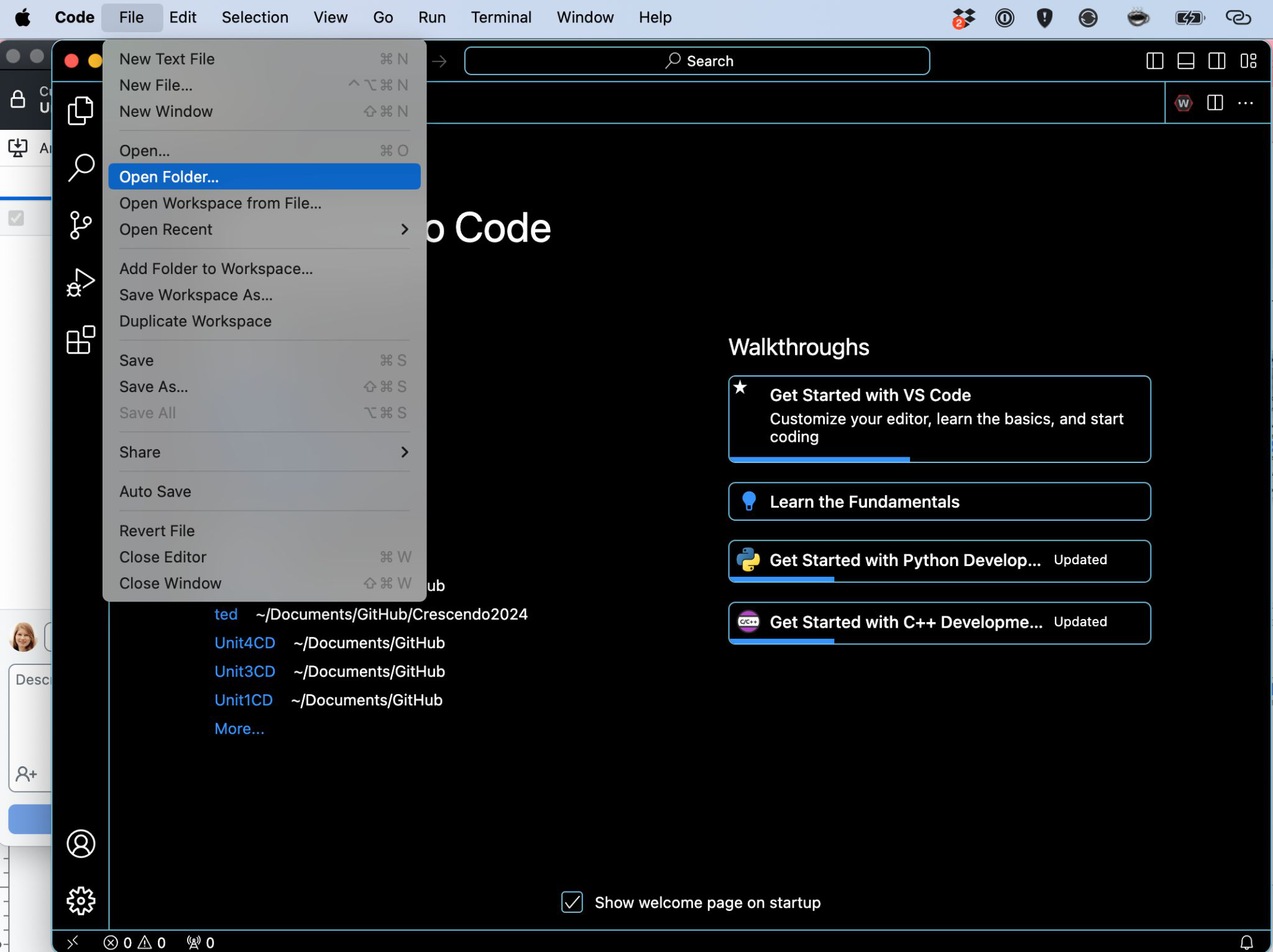
In VS Code, choose File → Open Folder. Navigate to the folder you found above.
VS Code should open directly to your cloned repository folder. If prompted, trust the authors and install recommended extensions.
Make sure you are running the VS Code that came with the WPILib installer (not a previously-installed version).
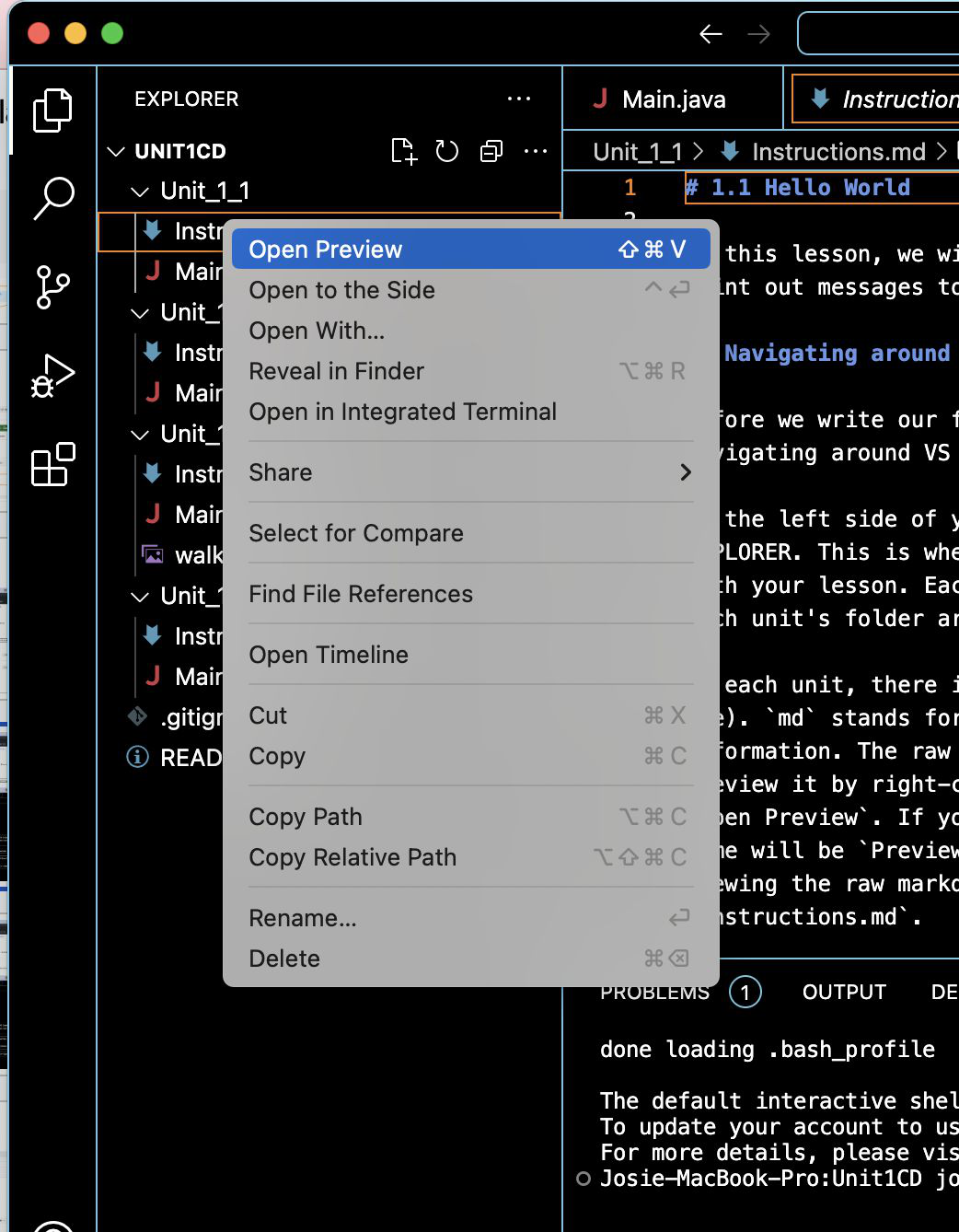
In the Explorer, open the unit’s instructions file (e.g., Unit_1_1/Instructions.md). Right-click and choose Open Preview or press Shift+Ctrl+V (Windows/Linux) or Shift+Cmd+V (macOS).
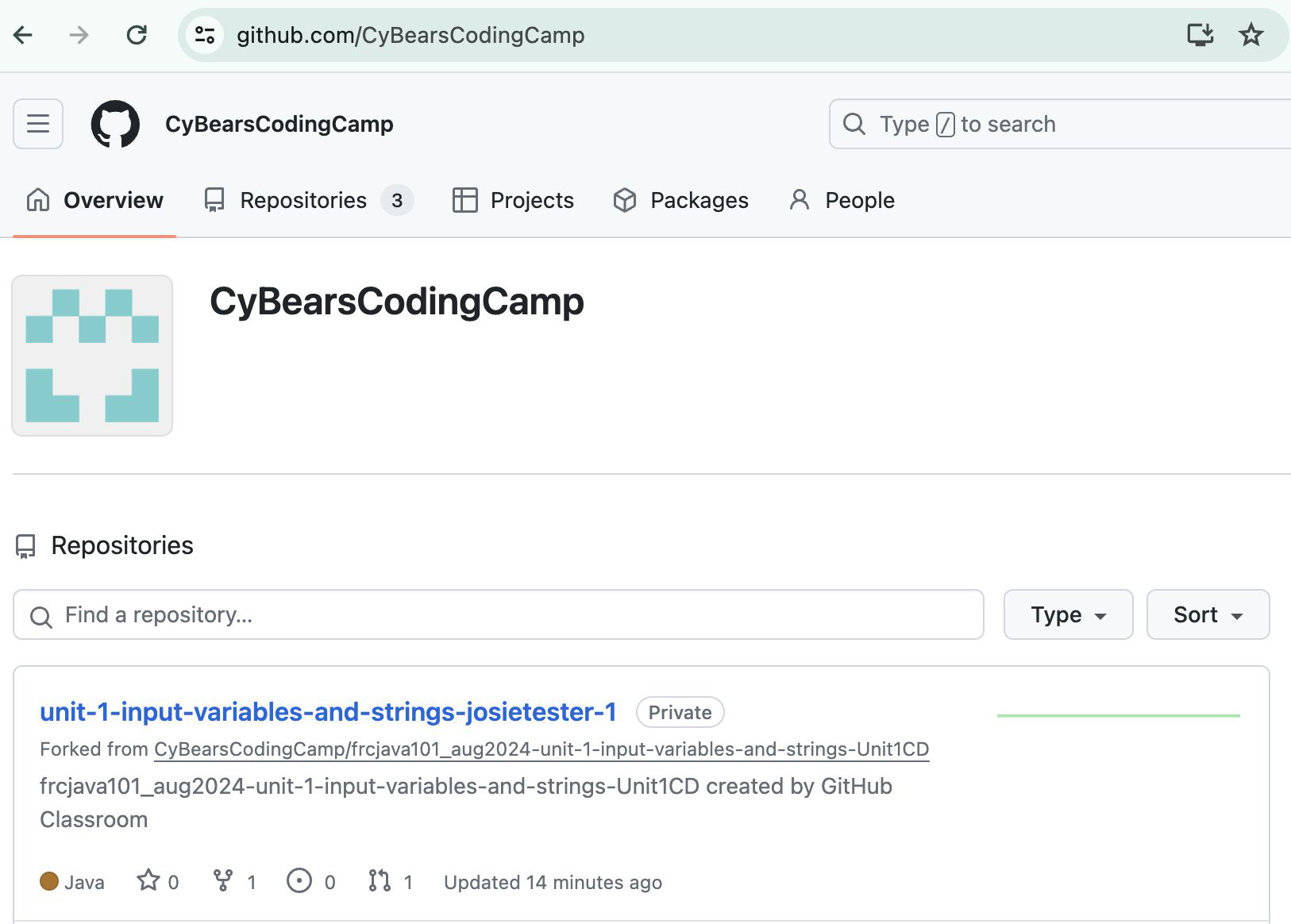
You can always find your Classroom repositories on your GitHub profile under Repositories, at http://github.com/CyBearsCodingCamp , or in GitHub Desktop under File → Open Recent.